Working with Text Editors, Package Managers, and SUDO Commands
In this lesson I have covered the essential commands that are widely used for editing text files, managing software packages and handling user priviliges.
Example -:
Text Editors ( Nano, Vi, Vim )
Package Management ( Yum, APT )
The SUDO Command ( for superuser privileges )
1. Text Editors -:
These are used for creating, managing and modifying the text files. Commonly used editors are:
Nano – Simple and beginner-friendly.
Vi – A classic Unix text editor.
Vim – An improved version of Vi.
In order to use these editors we need to install them. Let's check how to do it.
Run the following commands: to check if they already installed or not .
a -: nano --version b -: vi --version c -: vim --version
If any editor is missing, install it using:
sudo yum install nano -y # For RHEL-based Linux (Amazon Linux 2)
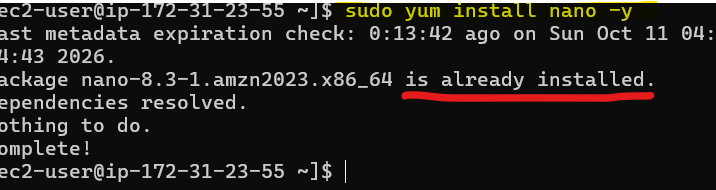
in my case it was already installed, so it did not run anything else.
- sudo apt install nano -y # For Debian-based Linux (Ubuntu)
Nano Text Editor
Nano is the easiest text editor to use.
Opening a File in Nano :
Run Command --> nano index.html
Editing and Saving in Nano
Modify the file directly.
Save changes:
CTRL + O, thenEnterExit Nano:
CTRL + X
Example: Editing a Static Website Title
Open
index.htmlin Nano.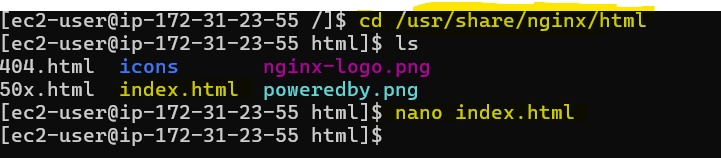
Modify the title tag.
Save changes using
CTRL + O, then pressEnter.Exit Nano using
CTRL + X.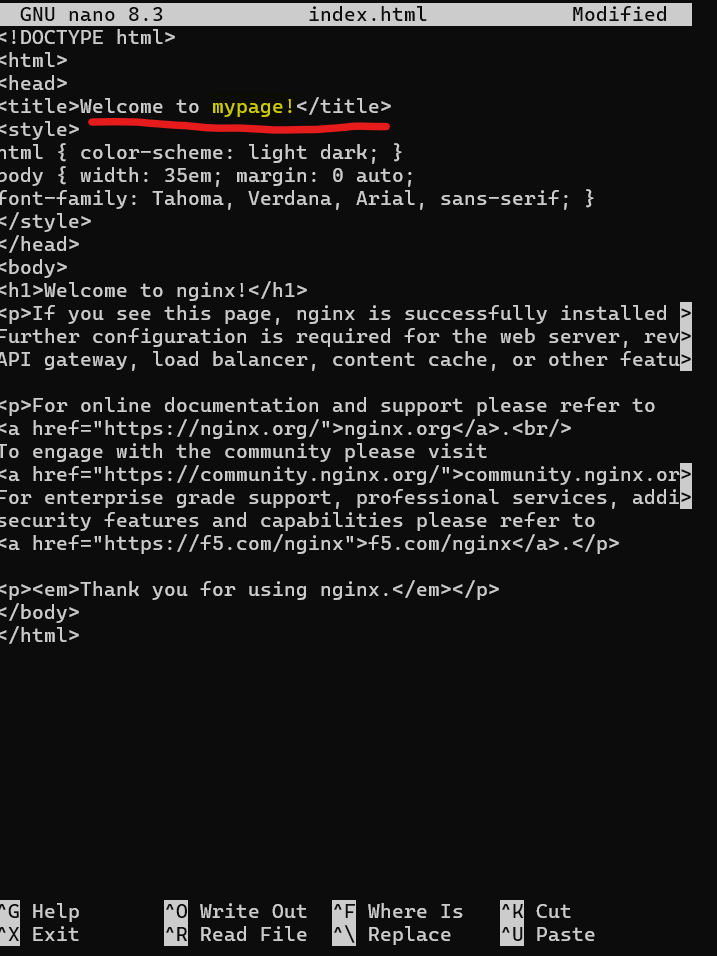
To verify the change, refresh the website in the browser*.*
Vi Text Editor
Vi is a traditional Unix text editor. It operates in two modes:
Insert Mode – For text editing, press(
ikey).Command Mode – For executing commands (
Esckey to switch back).
Opening a File in VI
Run command --> vi index.html
Editing in Vi
Enter Insert Mode: Press
iModify the file.
Exit Insert Mode: Press
EscSave and exit: Type
:wqthenEnterExit without saving: Type
:q!thenEnter
To check if the changes are applied, refresh the website in the browser.
Vim Text Editor
Vim is an advanced version of Vi with additional features.
Opening a File in Vim
Run command --> vim index.html
Vim works similarly to Vi, with Insert Mode (i to enter) and Command Mode (Esc to exit).
Modify the title tag.
Press
Esc, then type:wqto save and exit.
After making changes, refresh the website in the browser to verify the update.
2. Package Management -:
In Linux, Package managers are responsible to manage the software and allows to install, update and remove software packages efficiently.
Each Linux distribution uses a specific package manager:
YUM – For RHEL-based distributions (Amazon Linux 2, CentOS).
APT – For Debian-based distributions (Ubuntu, Debian).
In the below screen shots, I have used the YUM package manager because I have used Amazon Linux 2.
Updating the System: Run command -- > Sudo yum update -y
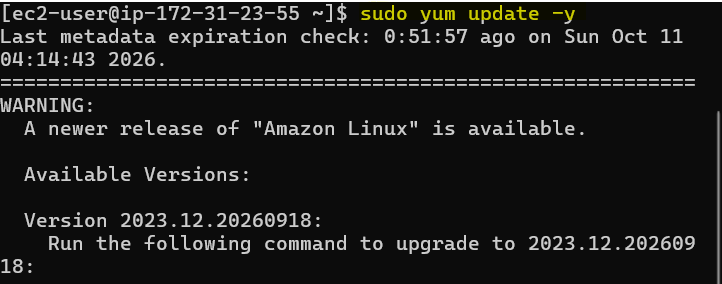
Installing a Package
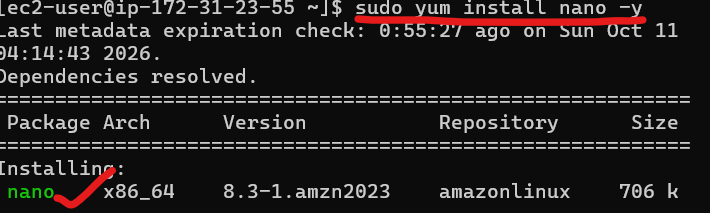
let's install ( Nano ): Run command -- > Sudo yum install nano -y
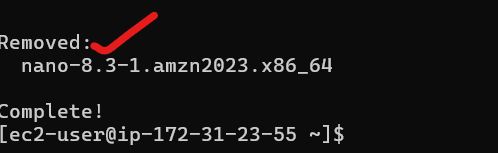
3. Removing a Package: Run command -- > Sudo yum remove nano -y

3. The Sudo Command
In Linux we cannot run some commands as a Root user, so for that we need to get privileges as a Superuser, we use { SUDO }.
Example :
Run command: sudo yum install nginx -y
If a user does not have sudo access, Linux denies permission
4. Managing user priviliges with Sudo
In Linux, there is file which is called { SUDOERS file } which shows the users who have administrative rights.
Checking If a User Has Sudo Access
Run command --> id
If the output contains: ---->> groups=1000(ec2-user), 27(wheel)

It means the user belongs to the { wheel group }, which has sudo privileges.
5. Editing the Sudoers File Safely
To modify user permissions, use visudo:
Run command: -- > sudo visudo
Locate: -- > %wheel ALL=(ALL) ALL
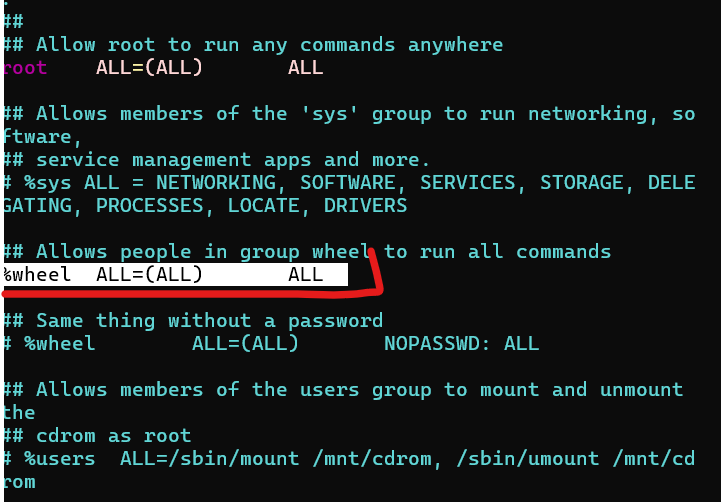
if the users are in the wheel group then it means it can execute all commands as a root user.
6. Adding a User to the Sudo Group
To grant full root privileges, add the user in the sudoers file:
ec2-user ALL=(ALL) ALL
Save and exit (Esc, then :wq).
7. Verifying Sudo Privileges
To confirm a user's sudo access:
Run Command -- > sudo -l
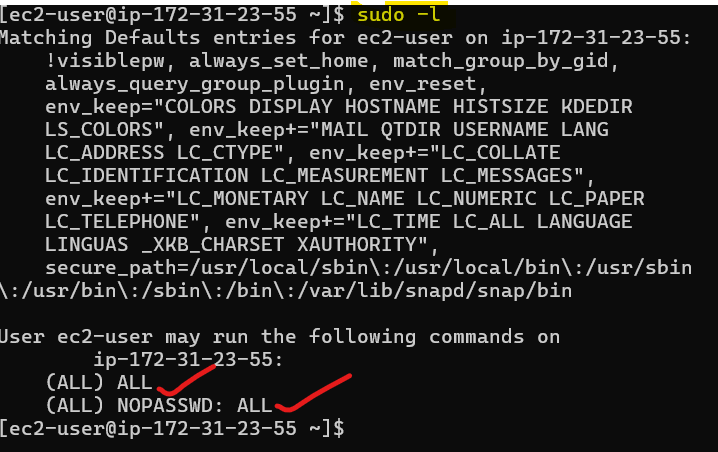
This lists all commands the user can execute as a superuser.
TROUBLESHOOT -:
While installing NGINX server i faced following problem -:
Not able to start my NGINX server :
Even after running { sudo yum install nginx } and { sudo systemctl enable nginx } , if it is not running then use this command -:
a. Run command -: sudo nginx -t
This command will test your Nginx configuration for syntax errors and ensure all file paths and directives are correct.
If your configuration is correct, you will see an output indicating that the syntax is okay and the test was successful:
nginx: the configuration file /etc/nginx/nginx.conf syntax is ok
nginx: the configuration file /etc/ngin/nginx.conf test is successful